Purpose
- This article explains how to use the Raiser's Edge NXT Side-by-Side Entry workflow in AiryGifts to manually enter gifts while viewing the related gift documentation
- Use this workflow when a gift needs to be reviewed and entered directly in Raiser's Edge NXT, with the AiryGifts document available beside the gift entry screen.
- After the gift is saved, the AiryGifts document can be associated with the gift record, helping your team keep gift documentation connected to the correct gift without manually filing or attaching the document later.
Note: The exact workflow steps, buttons, and available actions may vary based on your organization’s AiryGifts configuration.
When to use this workflow?
- Use the Raiser's Edge NXT Side-by-Side Entry workflow when gifts require manual review or are not ideal for automated OCR-based processing.
Common examples include:
- Handwritten gift documents
- Checks without a structured reply form
- Gifts with limited or unclear data
- Complex gifts that require staff judgment
- Gifts for new or uncertain constituents
- Low-confidence OCR documents
- Items that were skipped or routed for exception review
For standard, structured, high-volume forms where gift data can be reliably captured through automation, your organization may use an automated gift processing workflow instead.
Before you begin
Make sure you have:
- Access to AiryGifts
- Access to Raiser's Edge NXT
- The correct AiryGifts workflow selected
- The correct gift batch available in Raiser's Edge NXT
- The AiryGifts and Raiser's Edge NXT integration enabled for your organization
- Any required gift coding information, such as fund, campaign, appeal, or other organization-specific fields
For the best experience, use two monitors:
| Monitor | Recommended use |
|---|---|
| Monitor 1 | AiryGifts document viewer |
| Monitor 2 | Raiser's Edge NXT gift entry screen |
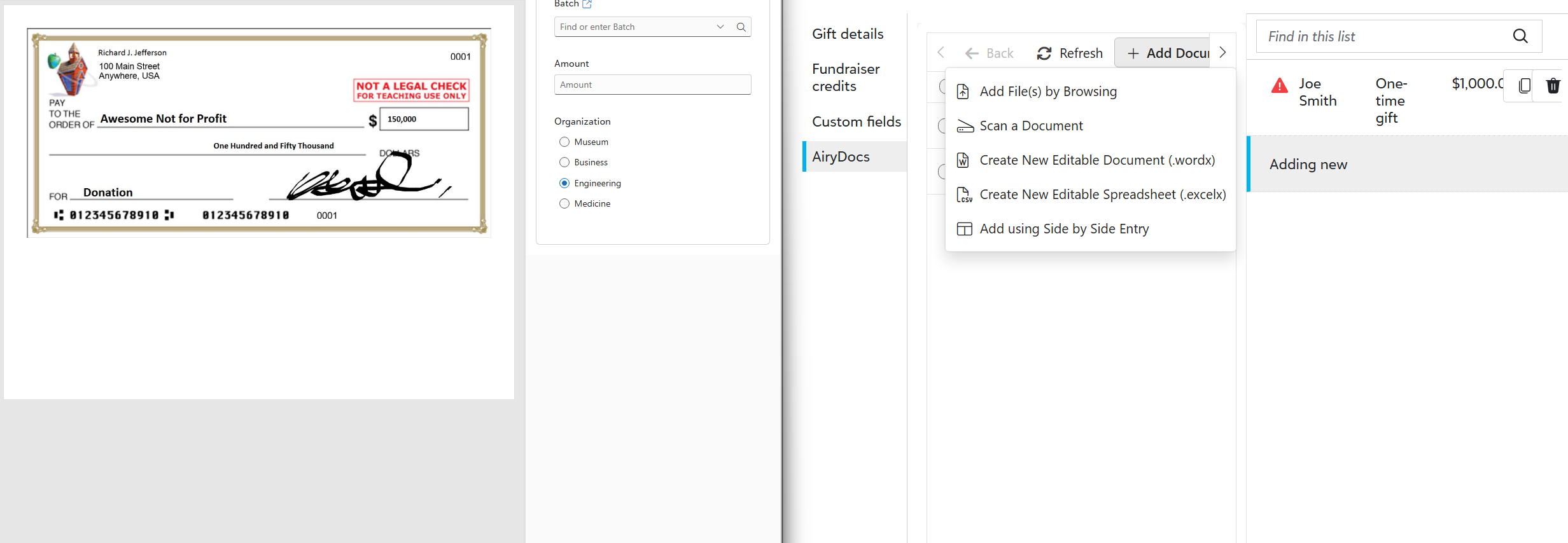
If you are using one monitor, arrange the browser windows side by side so you can view the gift document while entering the gift.
Important: To associate documents successfully, keep AiryGifts and Raiser's Edge NXT open in the same browser session.
Workflow steps
Your organization’s workflow may include some or all of the following steps:
- Sorting — optional and configuration-dependent
- Deposit Review — optional and configuration-dependent
- Data Entry
- Skipped
- Receipt & Thank — optional and configuration-dependent
- Completed
The main step for this workflow is Data Entry, where the gift is entered in Raiser's Edge NXT while the document is viewed in AiryGifts.
Step 1: Open your Side-by-Side work queue
- Open AiryGifts.
- From the left menu, select Process Gifts.
- In the Workflow dropdown, select your assigned workflow, such as Side by Side Entry.
- Use the filters to select the step you are working on, such as Deposit Review or Data Entry.
- If available, turn on Show only my items to view only items assigned to you.
- Click Refresh.
The Process Gifts page displays the items currently waiting in the selected workflow step.
Step 2: Open and review an item
- Open an item from the Process Gifts list.
- Review the document in the viewer.
- Confirm the document is readable and belongs to the gift you are processing.
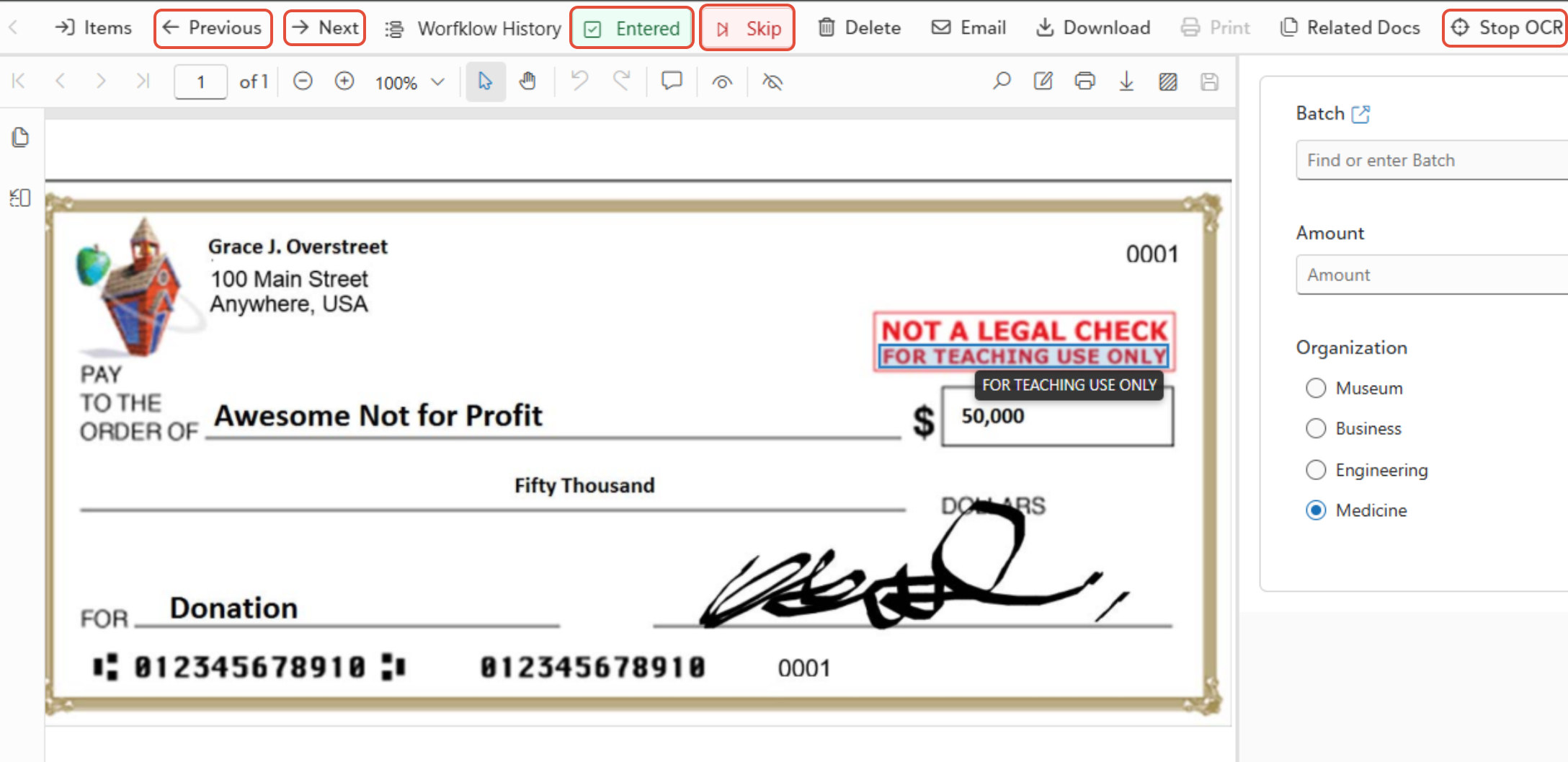
- Use the toolbar actions as needed:
- Previous or Next to move between items
- Skip to pause an item that cannot be processed yet
- Click OCR, if available, to help read text from the document
The completion button depends on the current workflow step. For example, Deposit Review may show Counted/Reconciled, while Data Entry may show Entered.
Step 3: Complete Deposit Review
This step is optional and configuration-dependent.
Deposit Review is used when your organization wants to confirm deposit-level information before gift entry. This may include reviewing gift counts, confirming batch totals, and preparing items for entry in Raiser's Edge NXT.
To complete Deposit Review:
- Open an item where the current step is Deposit Review.
- Review the document and confirm it is readable.
- Select the correct Organization, if required.
- Select the correct Gift Batch.
- Enter the Amount exactly as shown on the document.
- If applicable, set the Confidential flag.
- Click Counted/Reconciled.
- Click Next to continue to the next item, or click Close to return to the list.
After Deposit Review is completed, the item moves to the next configured step, usually Data Entry.
Step 4: Enter the gift in Raiser's Edge NXT
The Data Entry step is the main step in the RE Side-by-Side Entry workflow.
- Open the correct gift batch in Raiser's Edge NXT.
- Open the matching AiryGifts item where the current step is Data Entry.
- Arrange AiryGifts and Raiser's Edge NXT side by side.
- In Raiser's Edge NXT, enter the gift using the information from the AiryGifts document.
Common fields may include:
| Raiser's Edge NXT field | Source |
| Constituent | Gift document |
| Amount | Gift document |
| Gift date | Gift document |
| Payment method | Gift document |
| Check number | Gift document |
| Fund | Gift document or internal coding rules |
| Campaign, appeal, or other coding | Gift document or internal coding rules |
- Review the gift details for accuracy.
- Save the gift in Raiser's Edge Nxt.
Step 5: Associate the document with the gift
After the gift is saved in Raiser's Edge NXT, associate the AiryGifts document with the gift record.
- Keep the AiryGifts item open on the Data Entry step.
- In Raiser's Edge NXT, open the AiryGifts document integration panel.
- Select Add using Side by Side Entry
- Confirm that the document is linked to the saved gift.
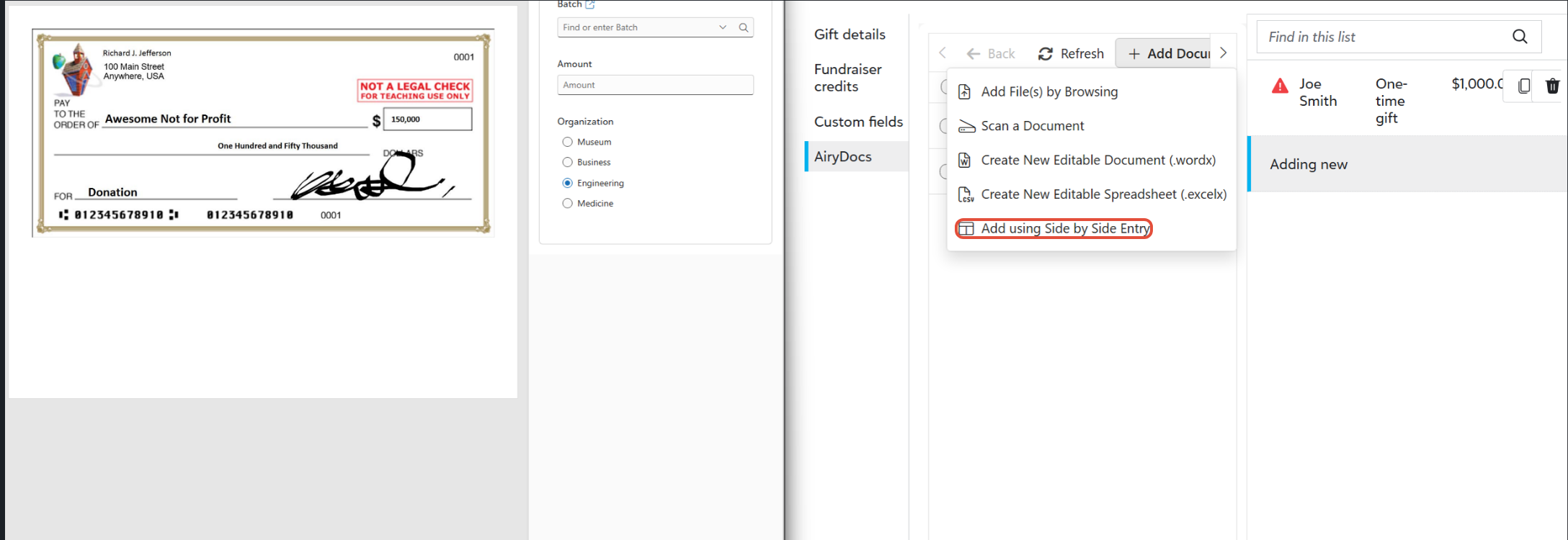
When the document is associated, AiryGifts connects the document to the gift record so the supporting documentation can be accessed later.
Depending on your organization’s configuration, AiryGifts may also:
- Mark the item as Entered
- Move the item to the next workflow step
- Open the next document automatically
If automatic navigation is not enabled, return to AiryGifts, click Entered, and then click Next to continue.
Step 6: Skip an item, if needed
Use Skip when an item cannot be completed during normal processing.
Common reasons to skip an item include:
| Reason | Example |
| Missing donor information | The constituent cannot be identified |
| Possible duplicate gift | The same gift may already exist |
| Invalid or unreadable document | The scan is unclear or incomplete |
| Research required | The fund, donor, or gift intent is unclear |
| Missing required coding | Required gift coding is not available |
Skipped items move to the Skipped queue for review.
Depending on your organization’s configuration, skipped items may be returned to a prior step, such as Sorting, Deposit Review, or Data Entry.
Step 7: Receipt & Thank
This step is optional and configuration-dependent.
If your organization uses Receipt & Thank in AiryGifts, you may use it to confirm that gifts have been entered and are ready for acknowledgement or receipt processing.
Depending on your configuration, this step may allow you to:
- Find gifts by name, amount, date, or gift batch
- Confirm that Constituent ID and Gift ID are present
- Select gifts for acknowledgement or receipt processing
- Generate receipt or thank-you outputs
- Update the gift acknowledgement or receipt status
If your organization does not use this step, items may move directly to Completed after the gift is entered and the document is associated.
Completed items
An item is complete when:
- The gift has been entered in Raiser's Edge NXT
- The AiryGifts document has been associated with the gift
- Any required review, acknowledgement, or receipt step has been completed
No further action is required for completed items unless your organization reopens or reprocesses them.
Was this article helpful?
That’s Great!
Thank you for your feedback
Sorry! We couldn't be helpful
Thank you for your feedback
Feedback sent
We appreciate your effort and will try to fix the article