Purpose
- This article explains how to process gift documentation in AiryGifts, from adding documents into the system to reviewing, processing, completing, and preparing gifts for donor communication.
The standard AiryGifts gift processing flow is:
Acquire Gifts → Process Gifts → Processed Gifts → Receipt & Thank
Before you begin
Make sure you have:
- Access to AiryGifts
- Permission to acquire or process gift documentation
- The correct workflow information for the gifts you are processing
- The correct acquisition template, if your organization uses templates
- Access to Raiser's Edge NXT, Blackbaud CRM, or the connected CRM, if you are entering or reviewing gifts
- Any required batch, fund, campaign, appeal, location, or department information
1. Acquire Gifts
Use Acquire Gifts to add new gift documentation into AiryGifts.
This is typically the first step when new gift documents are received through mail, scanning, or file upload.
To begin, navigate to:
Dashboard → Acquire Gifts
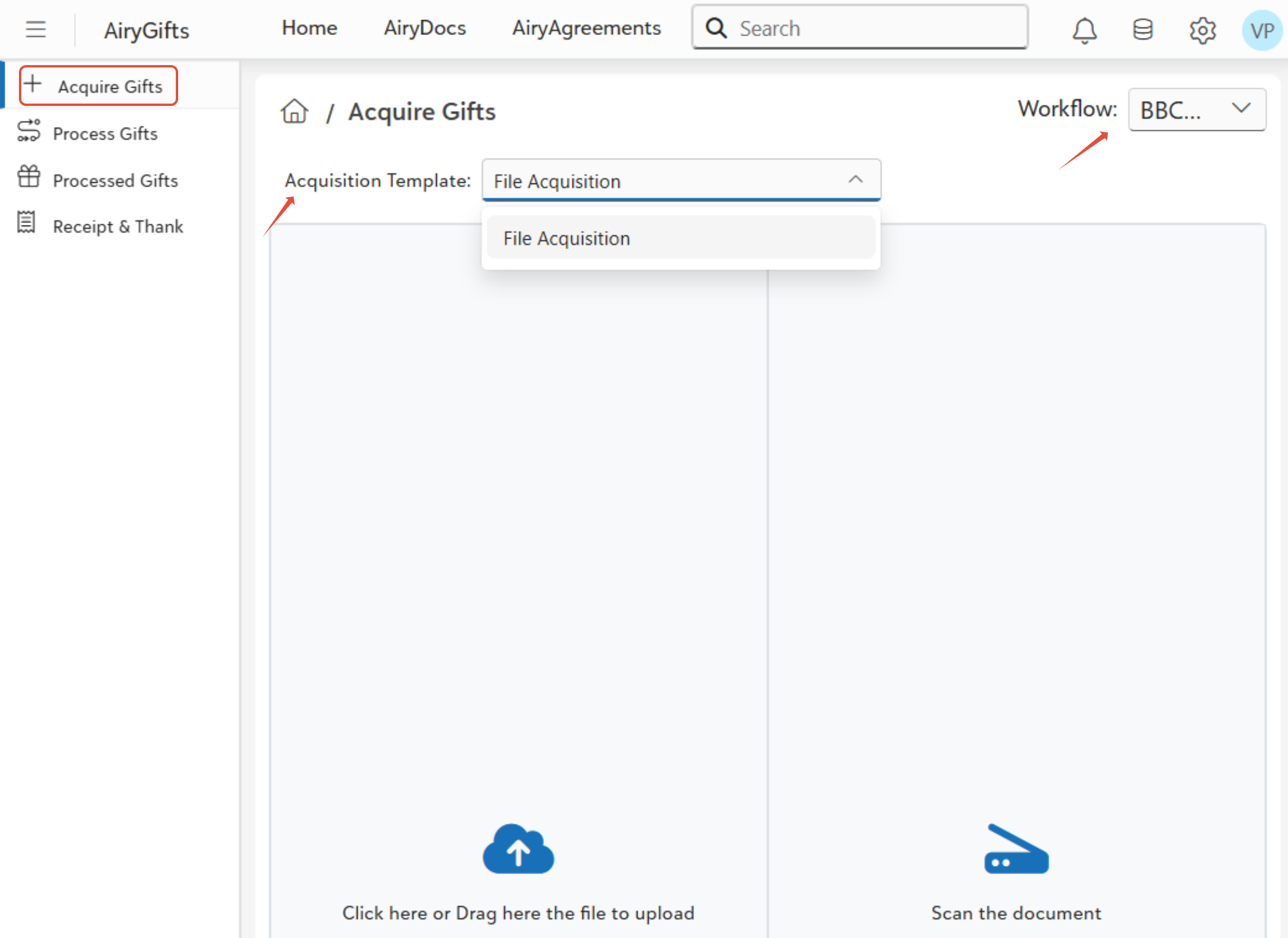
Select the workflow type
This option is configuration-dependent.
If your organization uses multiple workflows, select the workflow type that matches how the gifts should be processed.
Examples may include:
| Workflow | When used |
| RE Side-by-Side Entry | Manual entry required |
| RE Gift Process Automation | OCR compatible forms |
| BBCRM Gift Process Automation | BBCRM processing |
The workflow type may determine:
- Workflow steps
- Available actions
- Ownership routing
- OCR behavior
- Processing rules
Select the acquisition template
This option is configuration-dependent.
An acquisition template controls how documents are ingested and prepared for processing.
Depending on your configuration, templates may control:
| Configuration | Purpose |
| Document separation | Splits scanned files into individual gift documents |
| OCR zones | Defines areas used for field extraction |
| Default workflow step | Sets the item’s starting step |
| Entry point routing | Routes items to the correct workflow or queue |
| Default properties | Applies pre-filled values such as location, gift type, or owner |
Examples of acquisition templates may include:
- Check processing template
- Credit card donation template
- Pledge processing template
- Unsorted gift documentation template
Upload or scan documents
After selecting the required workflow and template, add the gift documents.
| Method | Use when |
| Upload files | You already have scanned documents saved locally |
| Scan | You are scanning physical documents directly into AiryGifts |
After upload or scanning, AiryGifts prepares the documents for processing.
Depending on your configuration, AiryGifts may:
- Create workflow items
- Assign the selected workflow
- Apply template rules
- Separate documents
- Assign the starting step
- Store the documents
- Add the items to the Process Gifts grid
Once acquisition is complete, the documents are ready to be processed.
2. Process Gifts
Use Process Gifts as the main workspace for active gift processing.
This is where gift processors review documents, update properties, run OCR if available, complete workflow actions, and move items toward completion.
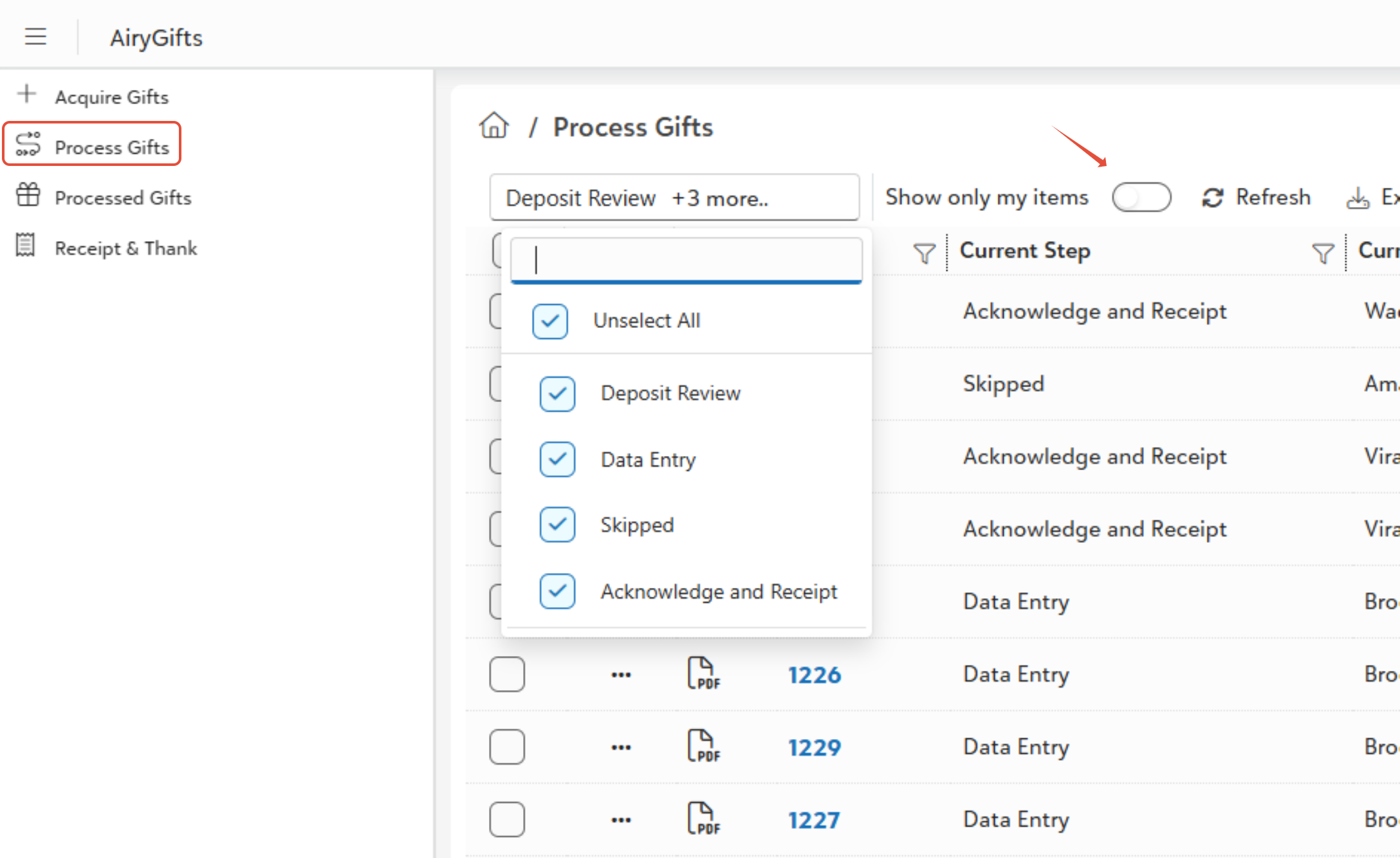
To open the work queue:
- Open AiryGifts.
- Select Process Gifts from the left menu.
- Select the correct workflow, if required.
- Use filters to find the items you need to process.
- If available, enable Show only my items to view items assigned to you.
- Click Refresh.
Open a document
To review or process a document:
- Click the document from the Process Gifts grid.
- AiryGifts opens the document viewer and related fields or properties.
- Review the document.
- Complete the action required for the item’s current workflow step.
Depending on the workflow step, you may be able to update properties, run OCR, complete deposit review, enter the gift, skip the item, or mark the item as completed.
Edit or manage properties
This option is configuration-dependent.
Properties help organize and route gift documents through the correct process.
Depending on your setup, users may be able to update properties such as:
| Property | Purpose |
| Gift Type | Helps determine the processing path |
| Owner | Assigns the item to a processor or queue |
| Location | Supports routing and reporting |
| Batch | Groups items for deposit or processing |
| Fund | Supports gift coding |
| Status | Tracks processing state |
These properties may be used for assignment, workflow routing, filtering, reporting, and deposit grouping.
OCR processing
This feature is configuration-dependent.
OCR may be available when your organization uses structured forms or templates that support automated field extraction.
OCR can help extract information such as:
| Field | Example |
| Amount | 500.00 |
| Check number | 10233 |
| Gift date | 12/10/2025 |
| Donor name | John Smith |
To use OCR:
- Open the document.
- Click OCR, if available.
- Review the extracted values.
- Correct any values that are missing or incorrect.
- Continue with the required workflow action.
Important: OCR is an assistive tool. Always review extracted values before using them for gift processing.
3. Workflow processing actions
Workflow actions move documents from one step to the next.
The actions available depend on the item’s current step and your organization’s workflow configuration.
Entered
Use Entered when the gift has been successfully entered into Raiser's Edge NXT, Blackbaud CRM, or the connected CRM.
This action is commonly used in side-by-side entry workflows after the gift has been entered and the document has been associated with the gift record.
Depending on your configuration, selecting Entered may:
- Move the item to the next workflow step
- Mark the item as processed
- Move the item toward completion
- Support document association with the gift record
Note: For detailed manual entry instructions, Click here.
Skip
Use Skip when a document cannot be processed immediately.
Common reasons include:
- Missing donor information
- Possible duplicate gift
- Research needed
- Bad or incomplete scan
- Missing fund or coding information
- Item assigned to the wrong batch or workflow
Skipped items remain available for review and can be reprocessed after the issue is resolved.
Acknowledged & Receipted
This action is optional and configuration-dependent.
Use Acknowledged & Receipted only if your organization tracks acknowledgement or receipt completion inside the workflow.
This action may be used when donor communication has already been completed and the item is ready to move forward or close.
Not all workflows use this action.
Workflow History
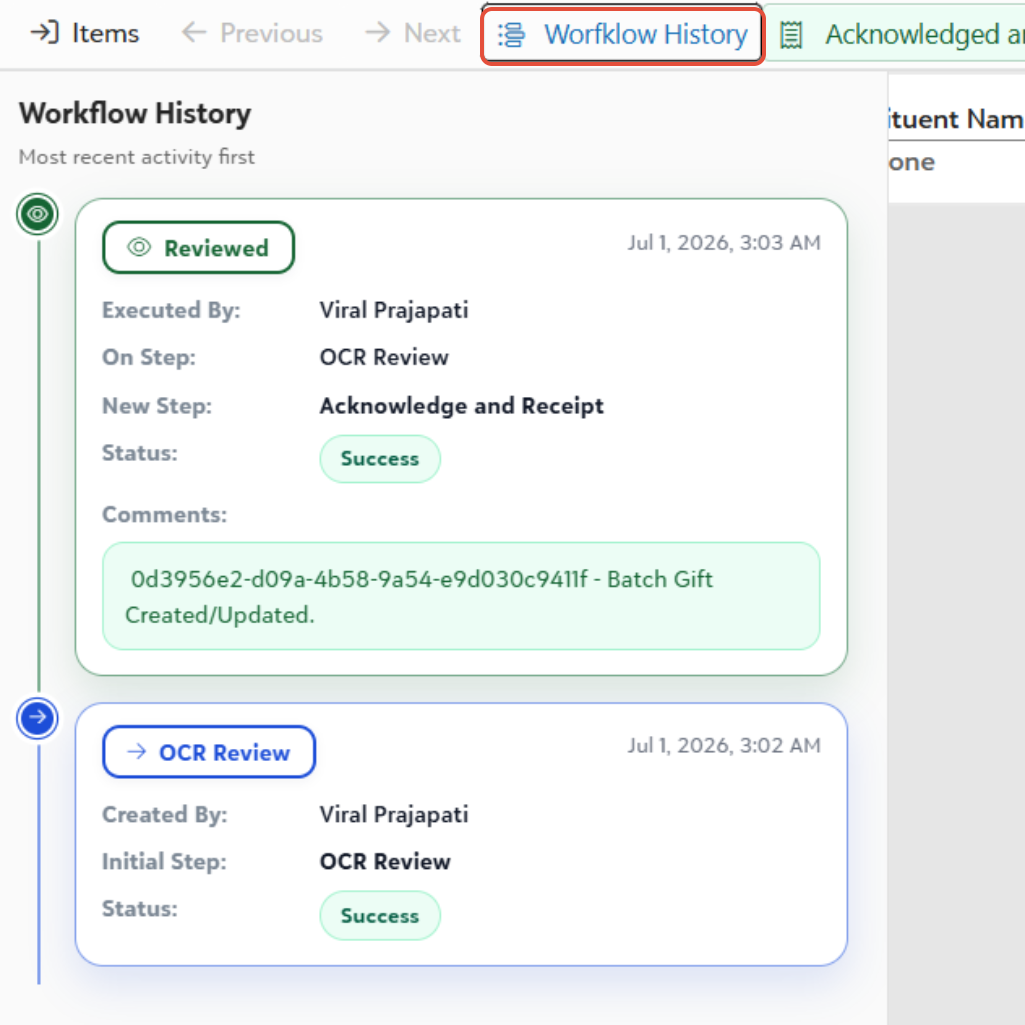
Use Workflow History to review the activity on a workflow item.
You can do so by opening an item and clicking on Workflow History
Depending on your configuration, Workflow History may show:
| Information | Example |
| Previous steps | Deposit Review, Data Entry |
| Actions taken | Entered, Skipped, Counted/Reconciled |
| User | Processor name |
| Timestamp | Date and time of action |
| Changes | Field or property updates |
Workflow History is useful for audit review, troubleshooting, and process tracking.
Additional document actions
Depending on your permissions and configuration, you may have access to additional document actions.
| Action | Use when |
| Delete | The item was uploaded by mistake, is a duplicate, or is a test document |
| Download | You need a local copy for audit or offline review |
| Email | You need to send the document internally for research or approval |
| OCR | You need to run or re-run OCR, if available |
Note: Deleting an AiryGifts workflow item does not delete a gift record that already exists in the connected CRM.
4. Processed Gifts
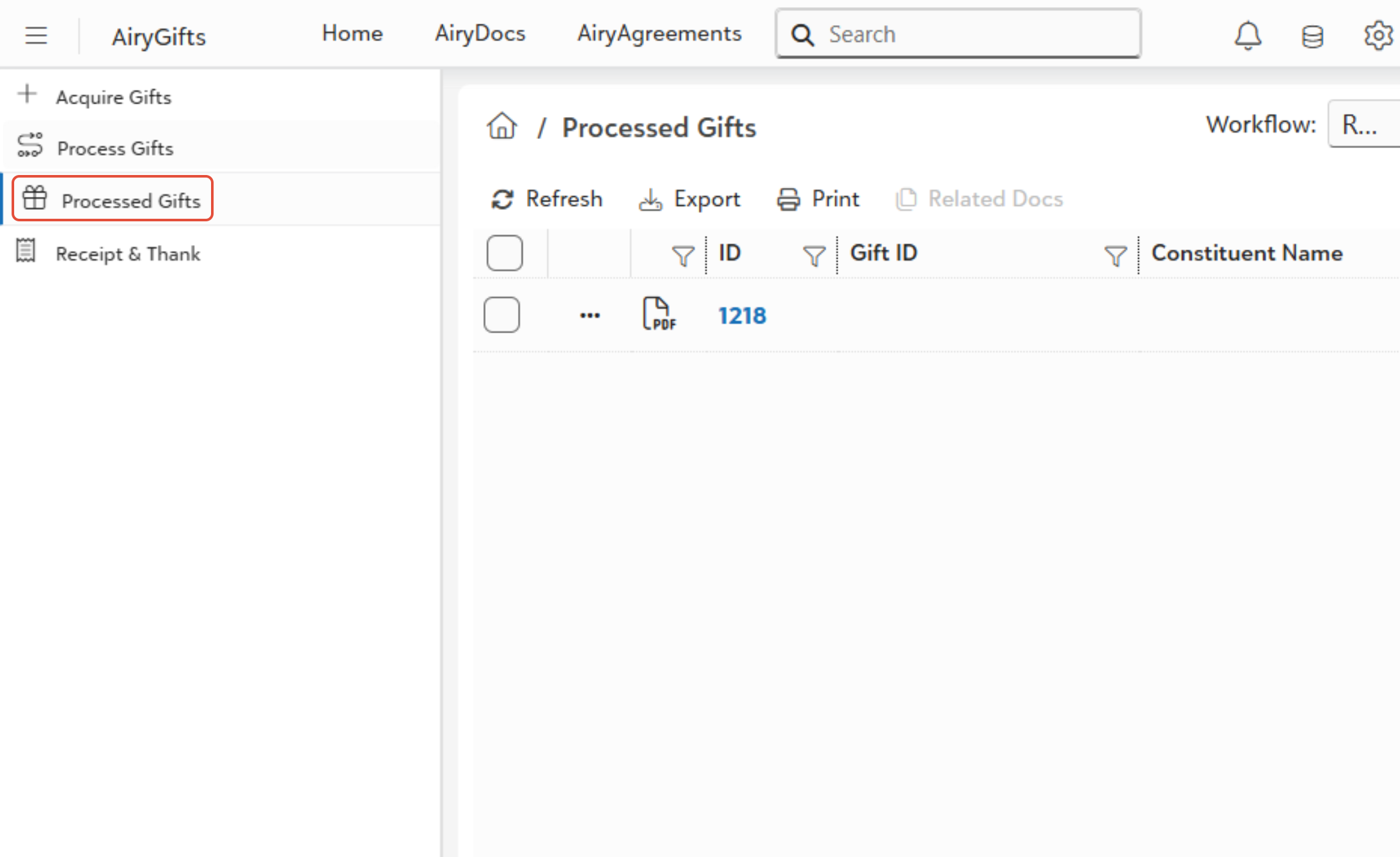
Use Processed Gifts to view documents that have completed gift processing.
Processed Gifts is separate from the active work queue so users can distinguish between work in progress and completed processing.
A document may appear in Processed Gifts after it has been:
- Entered
- Validated
- Associated with the correct gift record, if applicable
- Completed in the workflow
Depending on permissions and configuration, users may be able to:
- View processed documents
- Search completed records
- Filter by batch or other values
- Download documents
- Review workflow history
Processed Gifts is useful for audit review, research, and confirming that prior gift documentation was processed.
5. Receipt & Thank You
This feature is optional and configuration-dependent.
- User Receipt & Thanks when your organization manages donor acknowledgements or receipts through AiryGifts.
- Receipt and thank-you processing is often handled separately from gift entry because donor communication may be completed in batches, by a different team, or after additional review.
Select gifts for receipt or acknowledgement processing
Depending on your configuration, users may be able to select gifts by:
| Criteria | Example |
| Batch | Daily deposit batch |
| Date | Processing date |
| Entered by | Processor |
| Fund | Scholarship fund |
| Campaign | Annual campaign |
| Gift type | Check, credit card, pledge |
Generate receipts or thank-you documents
The receipt or acknowledgement process may include:
- Select the gift set.
- Select the receipt or acknowledgement template.
- Generate the output.
- Print the documents or send them by email.
- Confirm that the gift record has been updated, if applicable.
Templates may be based on Word Mail Merge, depending on your organization’s setup.
Print mode
Use print mode when receipts or thank-you letters need to be mailed.
AiryGifts may generate a batch PDF that can be printed and sent to donors.
Email mode
This option is configuration-dependent.
Use email mode when receipts or thank-you messages should be sent electronically.
A valid email address must be available on the donor or constituent record.
Depending on your setup, AiryGifts may also track that the receipt or acknowledgement was sent.
Updates after Receipt & Thank-You
Depending on your configuration, AiryGifts may:
| Action | Result |
| Store receipt document | Saves a receipt or acknowledgement copy |
| Update acknowledgement or receipt status | Updates the gift or CRM record |
| Track communication | Maintains an audit trail |
| Move item to completion | Updates the workflow status |
Workflow summary
| Area | Purpose |
| Acquire Gifts | Add gift documentation into AiryGifts |
| Process Gifts | Review and process active gift documents |
| Processed Gifts | View completed gift documentation |
| Receipt & Thank | Generate donor acknowledgements or receipts, if configured |
Troubleshooting
I cannot find a document in Process Gifts
- Check the selected workflow, filters, owner, current step, and date range. Clear filters if needed, then click Refresh.
A document was uploaded or scanned into the wrong workflow
- Follow your organization’s correction process. Depending on your permissions, you may need to update properties, move the item, delete and reacquire the document, or contact an administrator.
OCR did not return the expected values
- Confirm that the correct acquisition template was used and that the document is readable. If OCR is still incorrect, manually review and correct the values before processing.
The document cannot be processed
- Use Skip and follow your organization’s review process. Do not process the item until the correct information has been confirmed.
A document appears to be a duplicate
- Use Skip while the duplicate is reviewed. If the document was uploaded by mistake, a user with the correct permissions may delete the workflow item.
The document did not move to Processed Gifts
- Confirm that the required workflow action was completed. If the item is still in Process Gifts, review its current step and Workflow History.
Receipt or acknowledgement options are not available
- Receipt & Thank may not be enabled for your organization, or your role may not have access. Contact your AiryGifts administrator if you believe access is missing.
Was this article helpful?
That’s Great!
Thank you for your feedback
Sorry! We couldn't be helpful
Thank you for your feedback
Feedback sent
We appreciate your effort and will try to fix the article