Overview:
The print feature in AiryDocs allows you to quickly generate physical copies of documents or save them locally as PDFs. This guide covers how to access the print settings and customize you output.
- Navigate to your AiryDocs workspace and locate the document you wish to print.
- Click to open the document in the viewing or editing window.
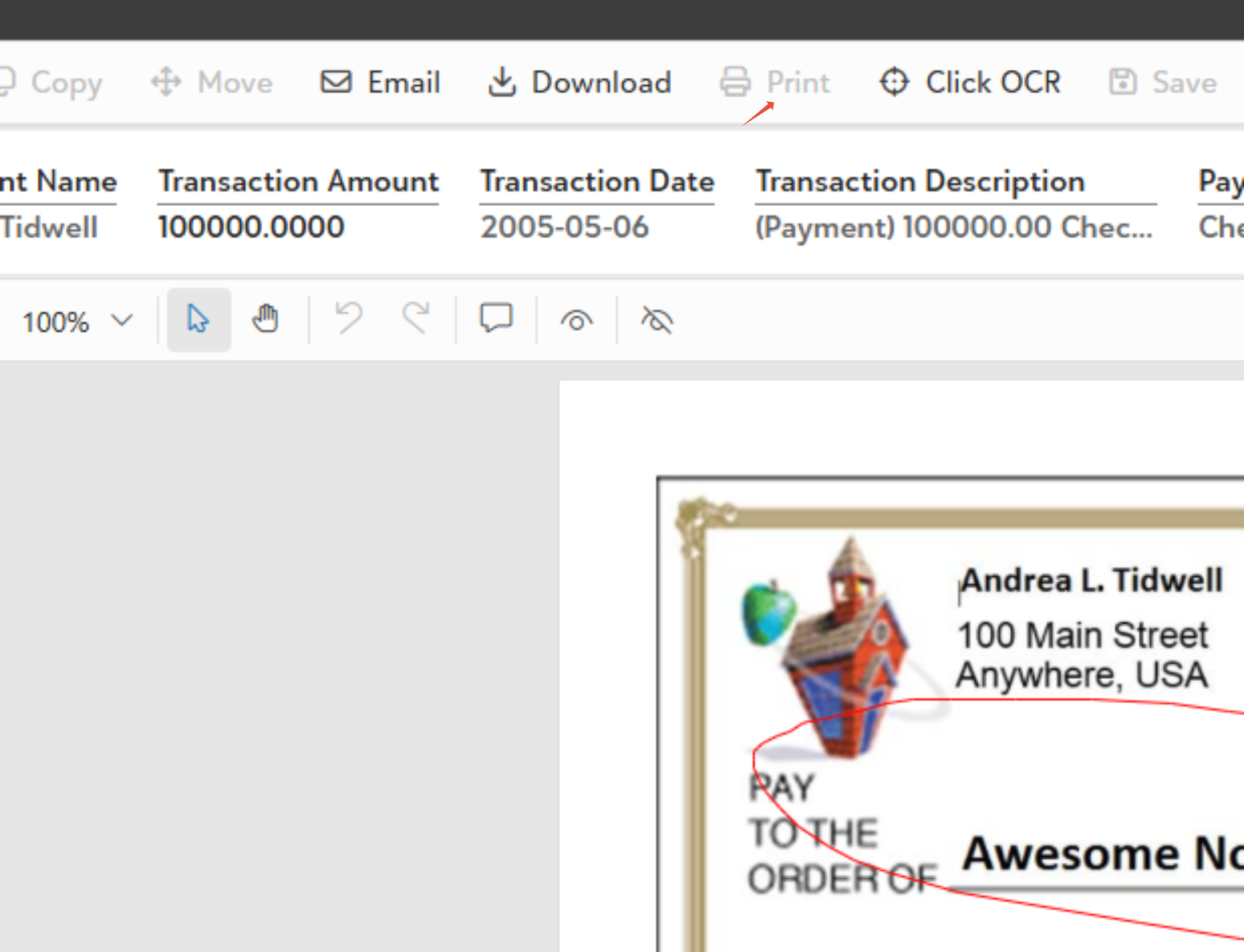
- Click the Print icon located in the Top-right Corner/Main Toolbar
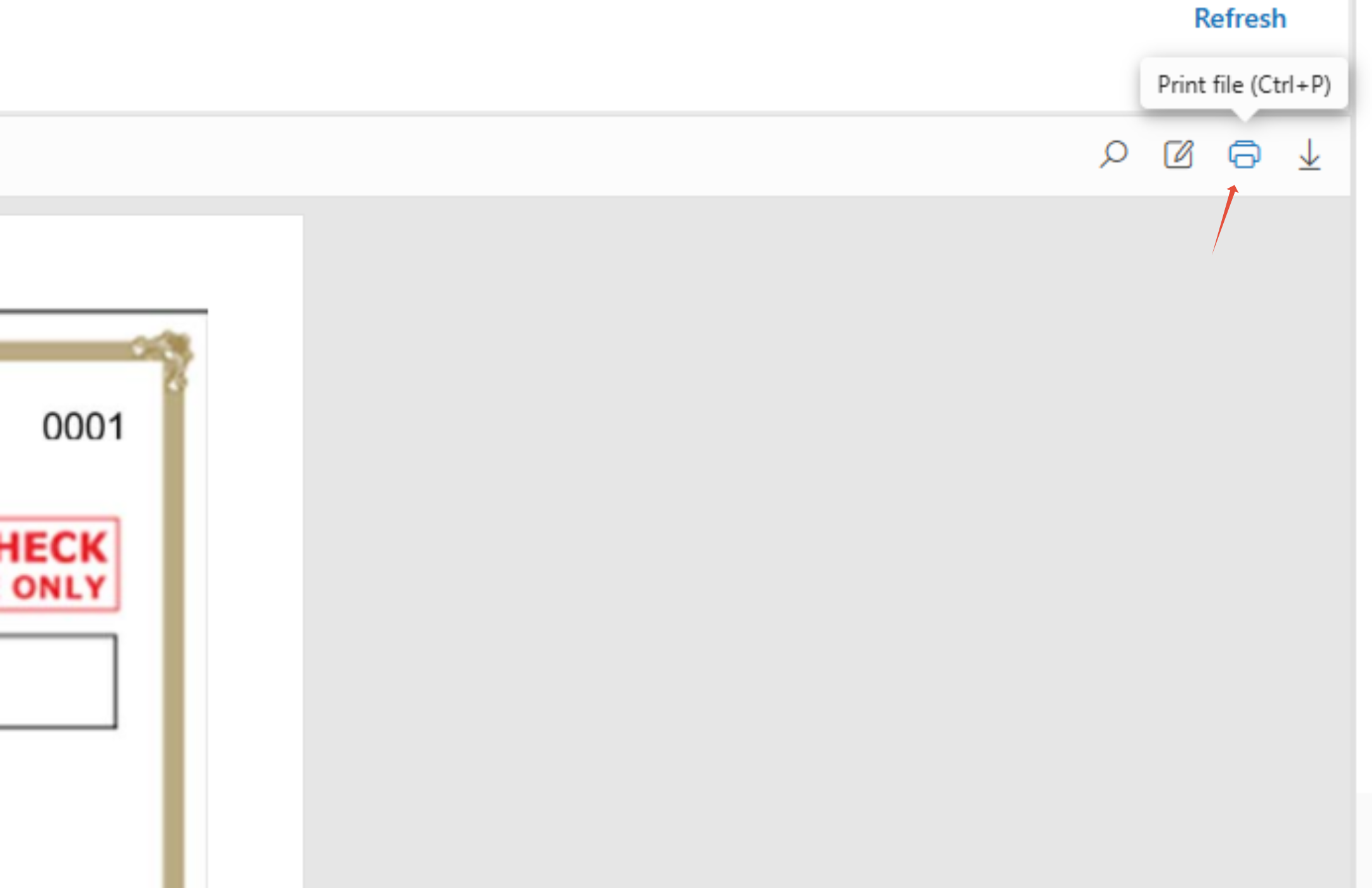
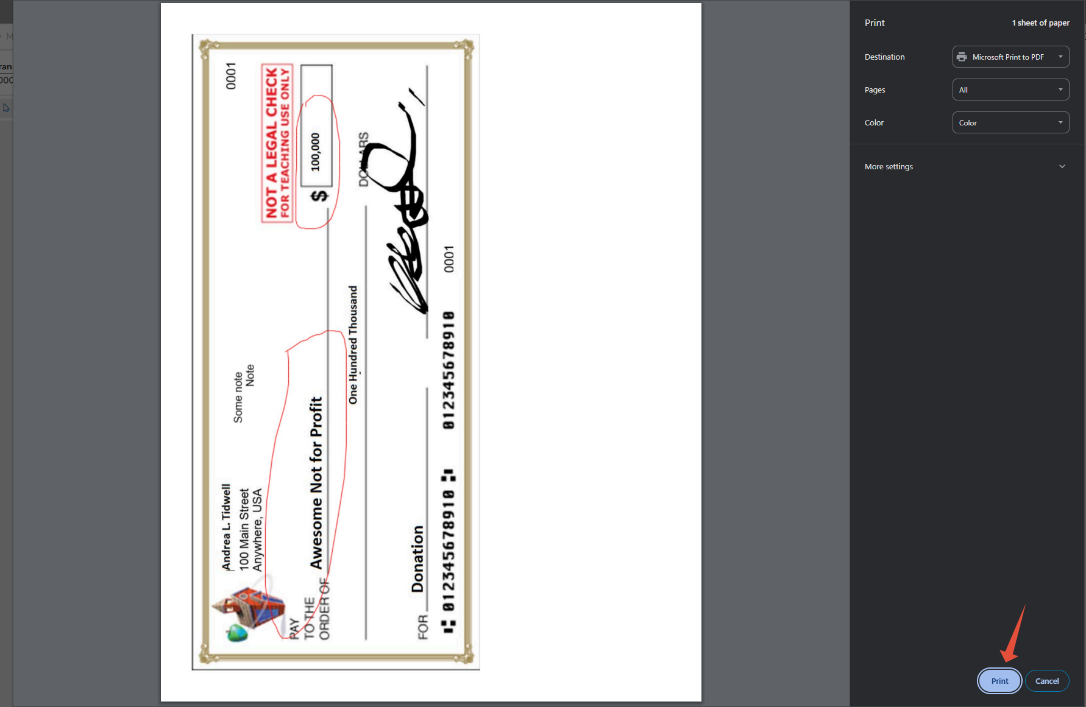
- Alternatively, use the keyboard shortcut: Ctrl+P (Windows) or Cmd+P (Mac) this will open a dialogue box through which you can print
Was this article helpful?
That’s Great!
Thank you for your feedback
Sorry! We couldn't be helpful
Thank you for your feedback
Feedback sent
We appreciate your effort and will try to fix the article