Property Management in AiryDocs allows you to add custom properties to folders and subfolders. These properties help you organize documents, store important information, and make documents easier to search and manage.
Property Inheritance
AiryDocs automatically applies properties to subfolders using a parent-child structure.
- When you create a property in a parent folder, it automatically applies to all subfolders
- Subfolders inherit properties from the parent folder.
- Inherited properties cannot be removed from a subfolder.
- To remove an inherited property, it must be deleted from the parent folder.
Add a Property
You can add a property from any folder or subfolder.
Steps
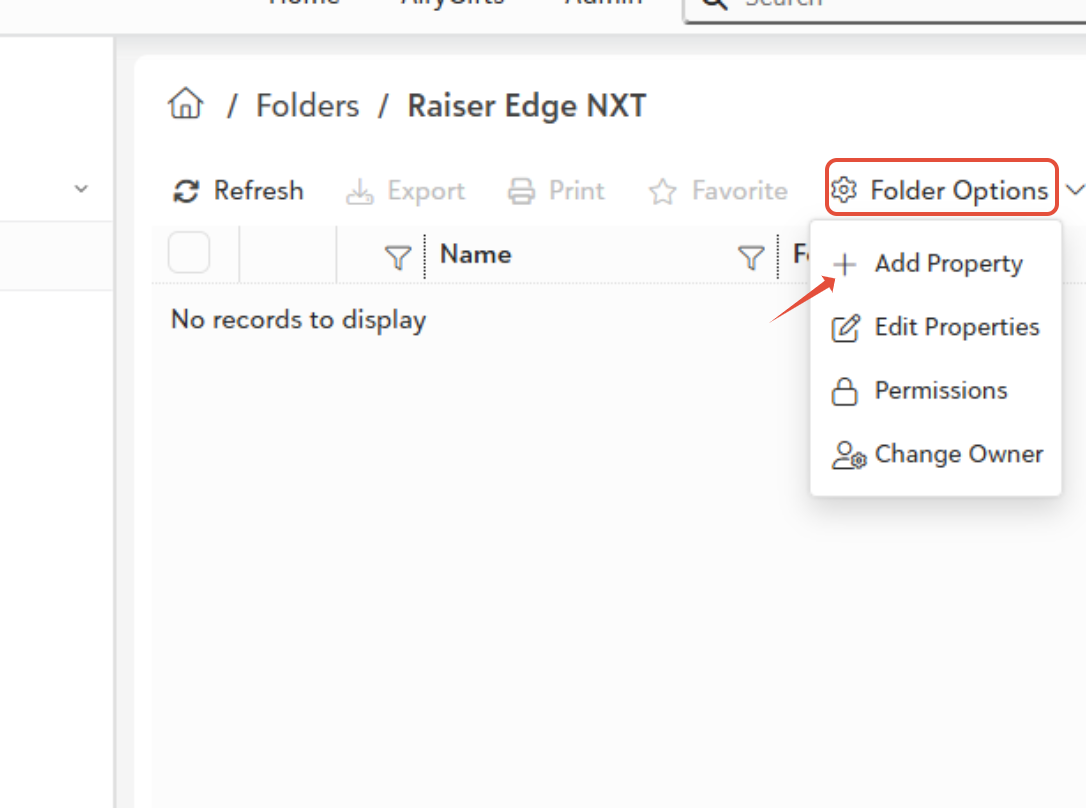
- Go to the folder or subfolder where you want to create a property.
- Click Folder Options.
- Select Add Property.
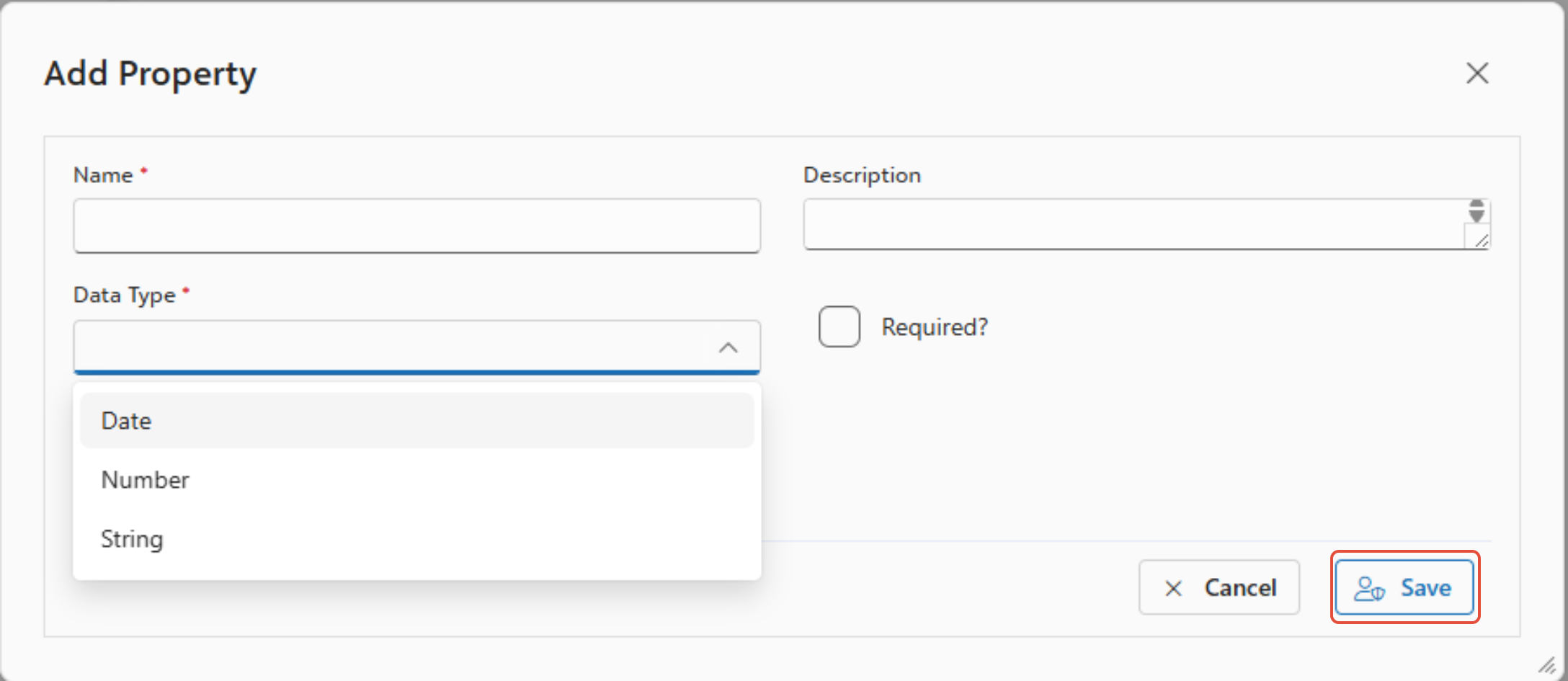
- Fill in the required details.
- Save the property.
Property Fields
| Field | Description |
|---|---|
| Property Name | The name of the property |
| Description | Optional information about the property |
| Data Type | The type of value the property will store |
Available Data Types:
- Date
- Number
- String (text)
Property Names Rules
- The Property Name is required.
- It cannot be blank.
- The name must be unique within the same folder.
- Duplicate property names are not allowed.
- Extra spaces at the beginning or end are removed automatically.
Description Rules
- This field is optional.
- You can leave it blank if you want.
- If provided, the system safely handles special characters.
Data Type Rules
- You must select a Data Type before saving a property.
- If not data type is selected, the system will show:
- "Please select a Data Type."
Data Type Options
- Different rules apply depending on the selected data type.
Number Properties
- If you choose Number as the data type:
Display Type
- You must choose how the value will be displayed.
Some display types allow predefined values such as:
- Drop-down lists
- Checkboxes
- List boxes
- Option buttons
If a list display type is selected, you must add at least one value.
Error message:
- "Please add at least one value."
Number Format
You must select a number format.
Available formats:
- Currency
- Number
- Percent
If no format is selected, the system shows:
- "Please select a Number Format."
Default Value Rules (Number)
If you set a default value, it must match the selected format.
Examples:
- Currency → valid number
- Percent → numeric percentage
- Invalid entries will show:
- "Invalid number format."
String Properties
- String properties store text values.
Display Type
- You must choose how the text will be entered or selected.
Examples:
- Text box
- Text area
- Drop-down list
If you choose a list-based display type, you must add at least one value.
Error message:
- "Please add at least one value."
Default value
- If using a list, the default value must be one of the list values.
- If using a text box or text area, you can enter any text.
- The default value can also be left blank.
Date Properties
- If the data type is Date, the default value must follow the supported date format.
- If the format is incorrect, the system will show:
- "Invalid date format."
Managing List Values
If your property uses a list of values, you can add values in several ways:
- Manually entering values.
- Importing a list.
- Using integrations.
Rules for List Values
- Duplicate values are not allowed.
- Blank values are not allowed.
- Extra spaces are automatically removed.
- At least one value must remain in the list.
If a value is already used in documents, removing it may show a warning.
Editing a Property
You can update certain parts of a property after creating it.
You can edit:
- Short Description
- Default Value
What Cannot Be Changed
- Property Name
- Data Type
If the default value does not match the property type, the system will show:
- "Default value does not match property type."
Deleting a Property
- To delete a property:
- Click Delete Property.
- Confirm the deletion.
- Confirmation message:
- "Are you sure you want to delete this property?"
After confirmation:
- The property will be permanently removed.
- If the property exists in subfolders through inheritance, it will also be removed there.
Permissions
Only authorized users can manage properties.
Authorized users can:
- Add properties
- Edit properties
- Delete properties
- Change folder permissions
If no access level is selected while assigning permissions, the system will show:
"Please assign View or Edit rights."
Users without permission cannot modify properties.
Changing Folder Ownership
Only the current owner or an administrator can change the folder owner.
Rules:
- The new owner must be a valid system user.
- You can search using name or email.
- A user must be selected before saving.
Error message:
- "Please select a valid user."
Ownership changes require confirmation.
Was this article helpful?
That’s Great!
Thank you for your feedback
Sorry! We couldn't be helpful
Thank you for your feedback
Feedback sent
We appreciate your effort and will try to fix the article